
Customize how topics and forums are displayed using WordPress templates or the plugin’s internal templates. These settings control whether additional links (e.g., forum, tag, or post-topic links) are automatically added to content.
Use WordPress Templates (Recommended)
We recommend using WordPress’s block-based template system (via the Block Editor) to customize the appearance of topics and forums.
Tip: Check Themes documentation section and Blocks for additional details on how to create and customize templates for Topic (custom post-type) and Forum (custom taxonomy).
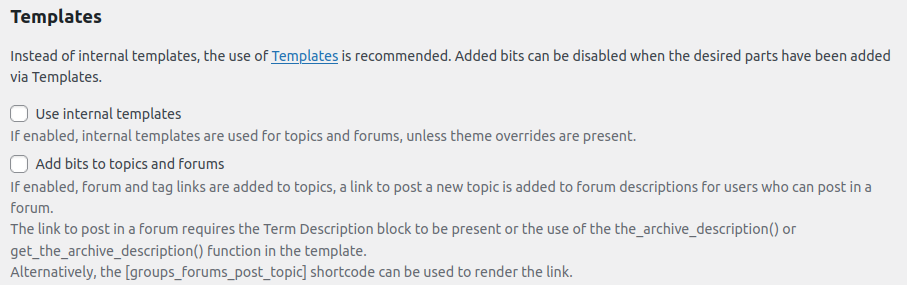
Use Internal Templates
When enabled, the plugin uses its built-in templates to display topics and forums, unless your theme provides custom template overrides.
Note: Disable this if you prefer to use WordPress’s template system for full control over design.
Add Bits to Topics and Forums
When enabled, the plugin automatically adds:
- Forum and Tag Links: Links to related forums and tags are appended to topic content.
- Post New Topic Link: A link to create a new topic is added to forum descriptions for users with permission to post.
Requirements for Post New Topic Link:
The forum description must use the Term Description block (in the Block Editor) or the the_archive_description() or get_the_archive_description() function in your theme’s template.
Alternatively, add the [groups_forums_post_topic] shortcode to a page or template to display the post-topic link.
Tip: Disable this setting if you’ve added these links manually via WordPress templates to avoid redundancy.